Share a password-protected design preview
By the ViewMock project · Updated October 21, 2026
A password-protected ViewMock link requires the recipient to unlock the image before viewing it. Set the password when creating the link, then send it through a separate trusted channel. Use this for a static export you are authorized to share with the intended recipient.
Check whether this workflow fits the material
Password protection controls access to the preview and its image routes. It does not stop someone who can view the image from saving it, taking a screenshot or forwarding both the link and password. ViewMock is not end-to-end encrypted, a document rights-management system or an identity check on your recipient.
Follow your client's handling requirements. If a project requires named-user access, immediate uploader revocation, an audit trail of individual recipients or a managed confidential-file service, choose that approved workflow. ViewMock has no uploader account or uploader deletion control.
Export only the design you intend to share
For a Figma or other design-editor document, export the intended frame as a supported static image. Uploading the export does not grant access to the editable source document. It also does not carry over interactive prototype behavior, comments or permissions from the design editor.
Open the export locally. Check for private notes, real names, unpublished business details and embedded metadata. Make any removal in a separate export before uploading; ViewMock preserves the accepted file. Keep the editable document and original export in your own storage.
Set the password before creating the link
- Select one JPG, PNG or static WebP in the upload tool and check the current file requirements.
- Enable password protection and enter a password meeting the displayed rules. Use a distinct password for this sharing task rather than an account password.
- Create the link and wait for the server-confirmed success screen. Copy the actual preview URL.
- Send the link to the intended recipient. Send the password separately through a channel you already trust, such as your established direct conversation.
The password is fixed once the image is activated. ViewMock does not offer password editing, password recovery for a preview or replacing its image. If you forget the password, create a new link from your retained original. That action does not revoke the earlier link.
Test from a fresh private browser session
Open a fresh private window that has not already unlocked the preview. Paste the link and confirm that the image is not visible before unlocking. Enter an incorrect password once to check that access is rejected, then enter the correct password and check the full image.
A browser that has already unlocked a preview can retain a temporary grant. Reopening there without a password prompt does not prove that the link is public. Close the entire private browsing session and start a new one for an independent access check.
Worked example: check the password gate yourself
Use the fictional Harbor Studio sample for a safe rehearsal. Select it, set a new preview password, then create a second link. The earlier unprotected link, if you made one for the other guide, remains unprotected; adding a password to a new upload does not change it.
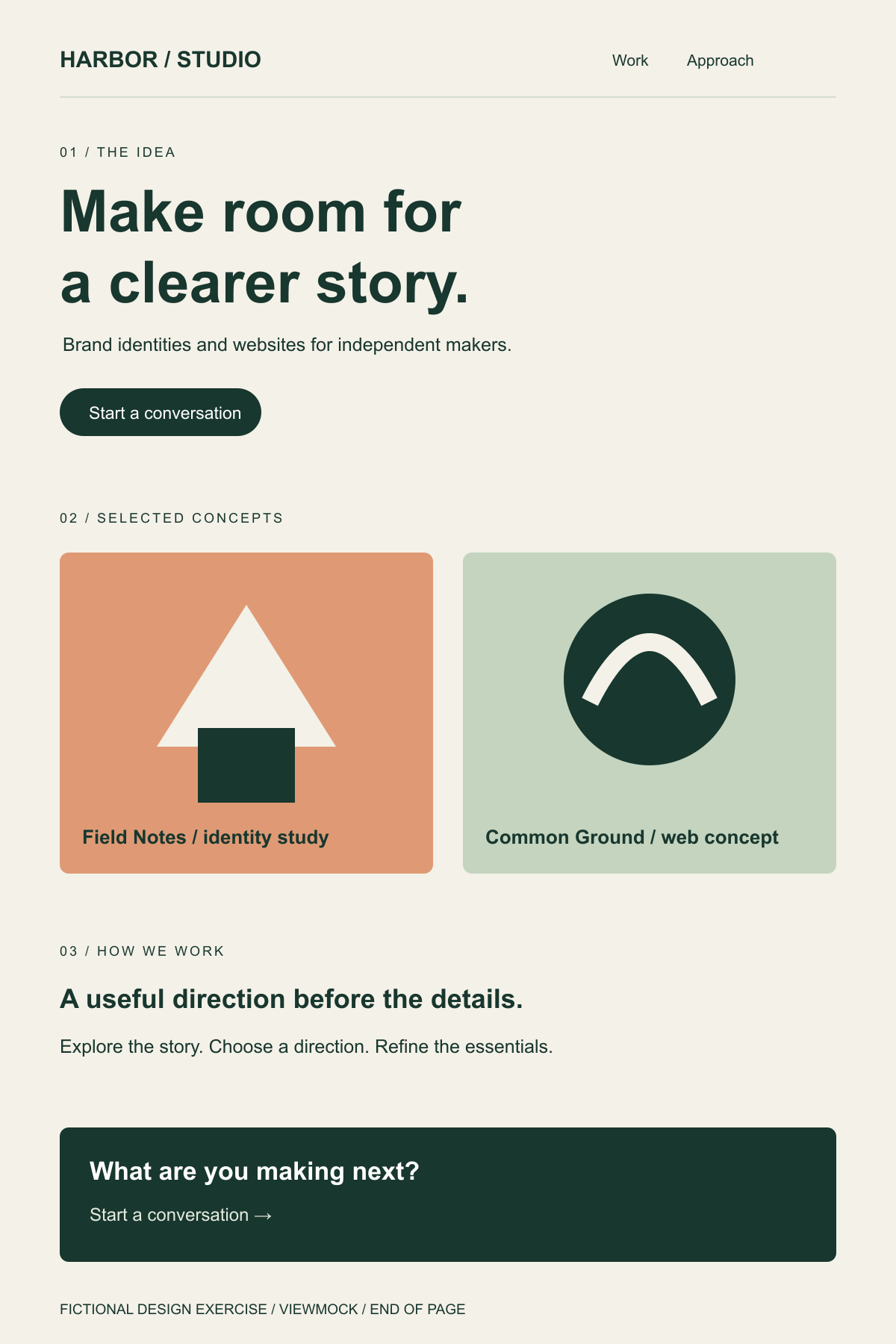
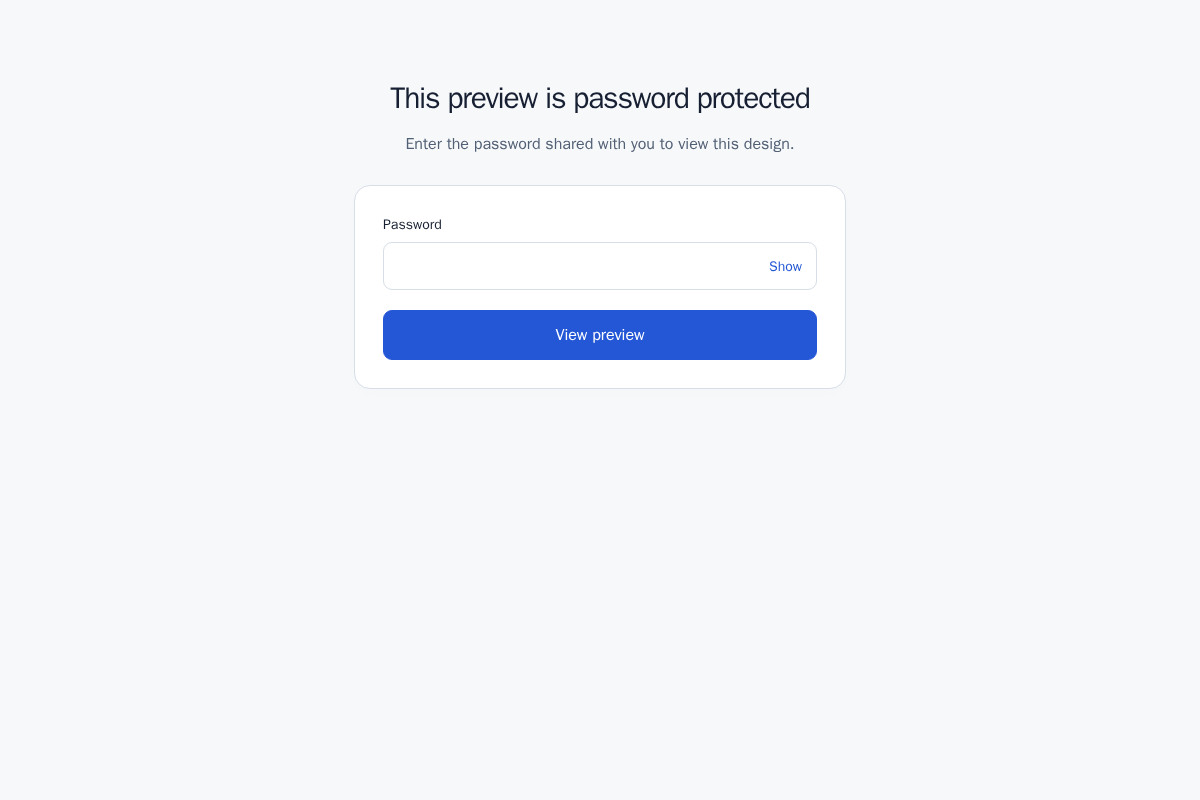
- In a fresh private session, open the protected link. Expect a password form and no image.
- Try a deliberately incorrect value once. Expect an error and no image; repeated guesses may be rate limited.
- Enter the correct preview password. Expect the same Harbor Studio image, including its end-of-page marker.
- Close every private window, start a new private session and reopen the link. Expect the password form again. An ordinary tab with an existing unlock grant is not an independent check.
These are observable access checks, not proof of a recipient's identity. In our isolated run, the wrong password was rejected, the correct one unlocked the original bytes, and a new browser session still required a password.
The agency tests the password gate in a fresh session before sending. It keeps feedback in the client thread and stores the original locally. If the design changes, it creates a new link and clearly labels the new version. This example describes a workflow, not a guarantee of confidentiality or a real customer's results.
Plan for the end of the review
Links have both a fixed maximum lifetime and an inactivity deadline. A qualifying preview can refresh inactivity only within the fixed maximum; a password does not make a link permanent. Your saved upload limits govern the link even if site defaults change later.
If a password is shared with the wrong person, assume that person may have seen or saved the image. A new password-protected upload does not invalidate their existing copy or the old link. Use your organization's incident process when the material requires it, and use a different sharing system when self-service revocation is essential.