Turn an image or long screenshot into a preview link
By the ViewMock project · Updated October 21, 2026
To make an image shareable, upload the file to ViewMock and copy the link after the server confirms it is ready. The recipient opens a browser page displaying the image at the width of their window. This is useful for a long website screenshot, a page mockup or a single design export.
Start with the file you want the recipient to see
Choose one JPG/JPEG, PNG or static WebP. ViewMock validates the actual file, not just its extension, and preserves accepted original bytes. It does not convert a PDF, SVG, animated image or editable design document into a supported image.
Check the current limit shown by the uploader. A file can also exceed supported image dimensions or decoded-pixel limits even when its byte size is small. If an export is rejected, keep your source file and create a separate export that meets the stated requirements. Renaming the extension does not convert a file.
For a website screenshot, inspect the exported file before sharing. A capture can miss content that has not loaded yet, include a cookie banner, or repeat a sticky header. Those are properties of the screenshot; uploading it will not repair them. Read the smallest text and inspect the last section in your local image viewer.
Upload, wait for confirmation, then copy
- Open ViewMock and browse for the image, or drag one image onto the upload area. If your browser supplies an image on the clipboard, pasting uses the same validation path.
- Review the local selection. Remove or replace it before submission if you selected the wrong file. These controls do not edit an existing preview link.
- Optionally enable password protection and enter the password before creating the link. Follow the validation shown by the current uploader.
- Create the link once. Transfer progress reports the upload; processing follows while the server validates and activates the image. A completed transfer is not yet a confirmed preview.
- When the success screen appears, copy or open the server-provided HTTPS link. If clipboard access is blocked, use the displayed link manually instead of assuming it was copied.
Try the complete journey with a sample image
Download our fictional Harbor Studio PNG and select it in the uploader. This is an original 1200 × 1800 design exercise, not a screenshot of a customer site. Keep the downloaded file so you can compare it with the preview.
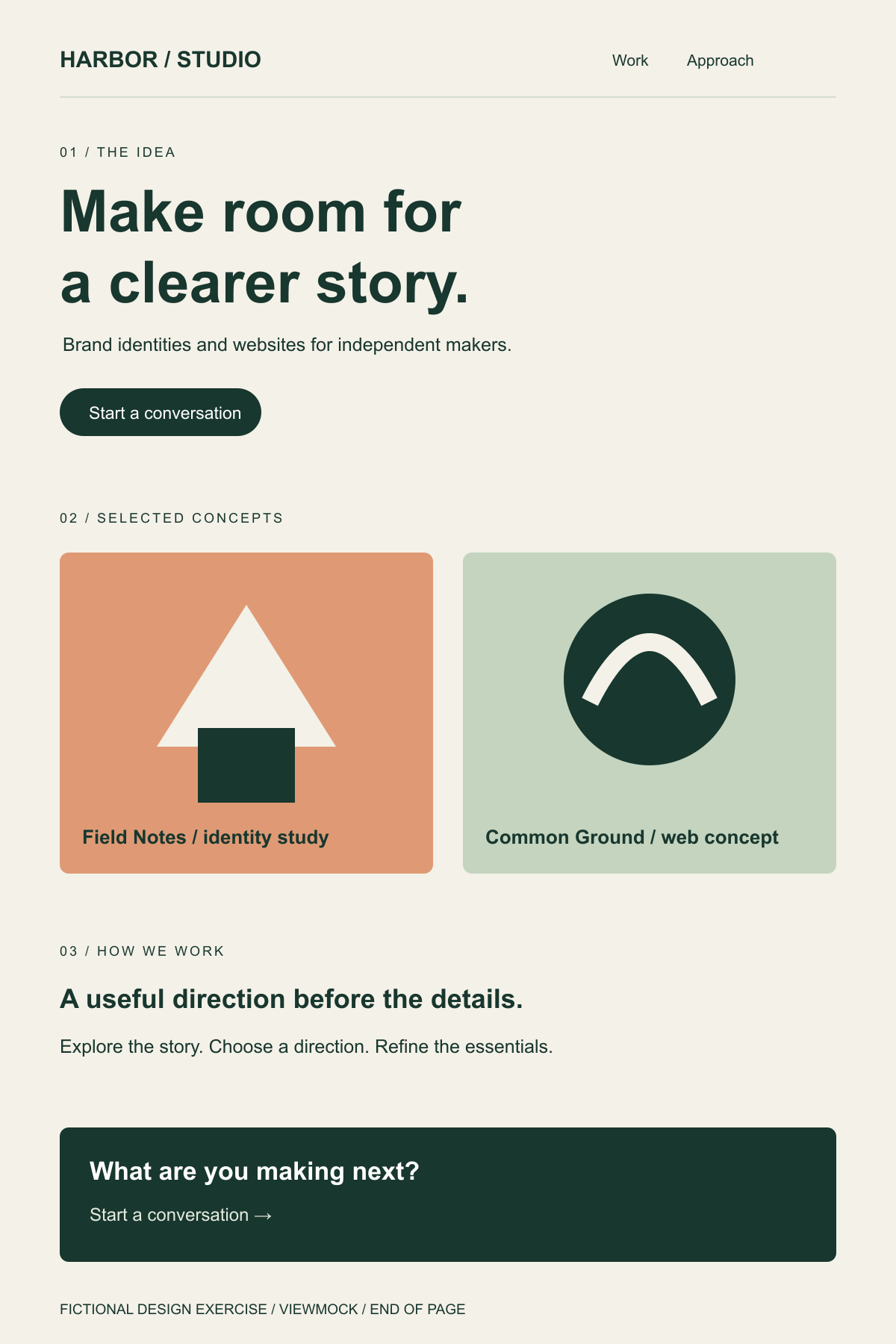
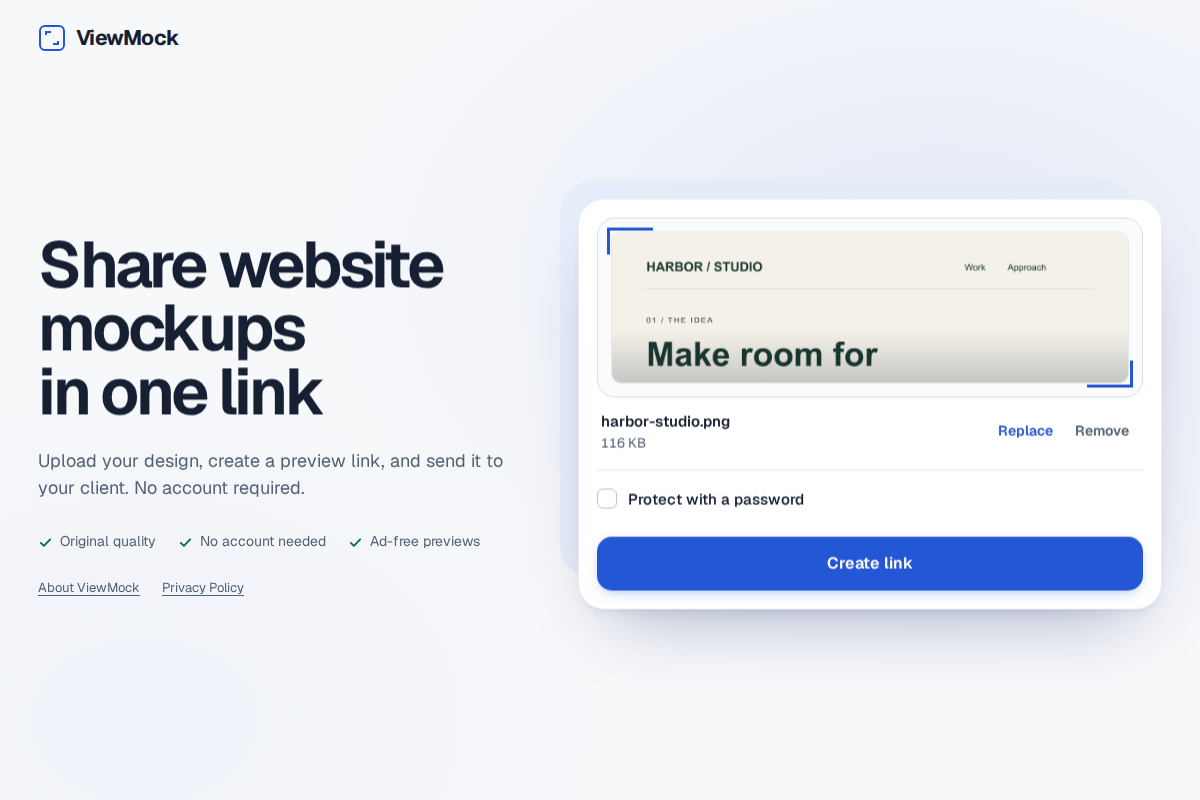
Create one unprotected link and open the server-confirmed result. At the top, find “Make room for a clearer story.” In the middle, find both concept cards. Scroll to “END OF PAGE” at the bottom. Those three checks catch a wrong export or an incomplete capture without relying only on a thumbnail.
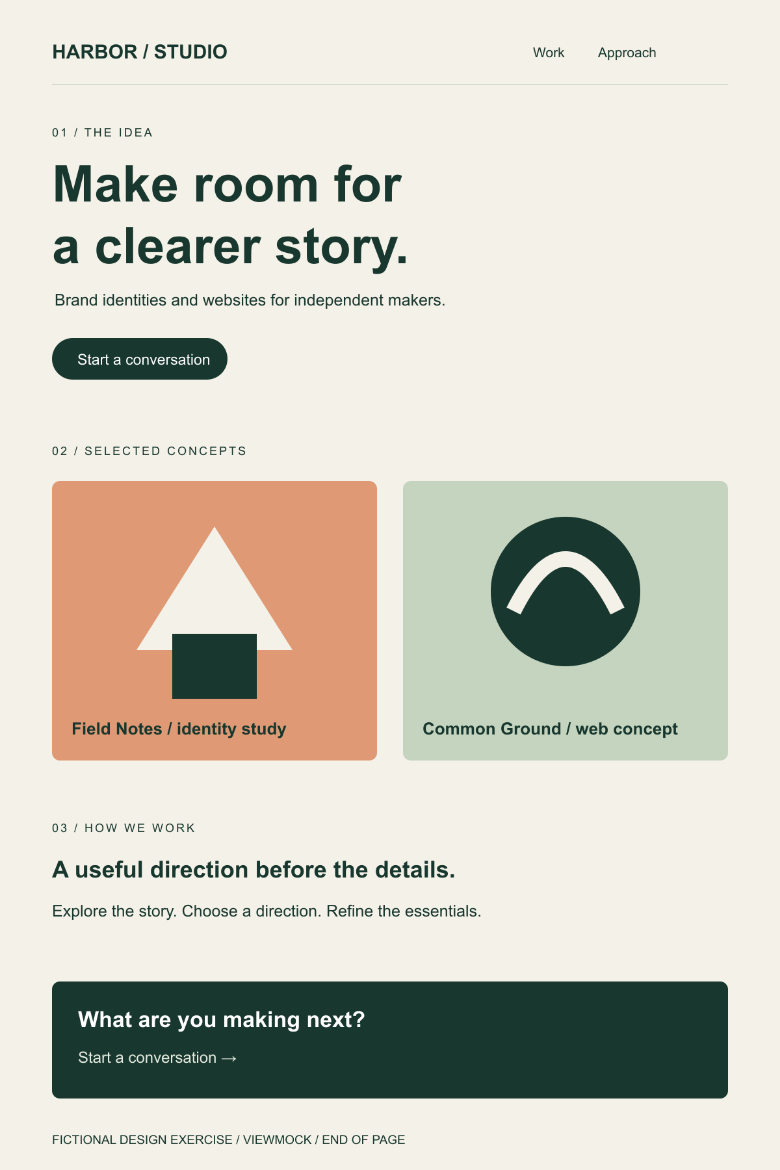
In a narrower browser the same desktop image becomes smaller; the two cards stay side by side. This checks image fitting, not responsive website behavior. A separate mobile design needs its own export and link.
The displayed width follows the browser, including enlarging an image narrower than the window. Enlarging a small export can make it look soft even though the original file is unchanged. Compare at a sensible window width before concluding that the stored image was compressed. For a mobile design review, share a mobile export rather than expecting the desktop screenshot to rearrange its content.
Understand the kind of link you are sharing
The copied URL opens a ViewMock preview page. It is not a permanent image-hosting URL intended for a website's image source, an email signature or a downloadable asset library. Optional password checks and expiry apply to image delivery as well as the preview page.
An unprotected link can be opened by anyone who obtains it. Use the password workflow when appropriate, and keep an independent original. Creating another link does not change an earlier image or its lifetime.
Recover from a failed or interrupted upload
If the connection drops, follow the uploader's recovery or retry message. A committed upload can be recovered through its existing upload record; do not repeatedly submit while a request is still running. If uploads are paused, capacity is unavailable or a rate limit is reached, follow the displayed wait guidance and try later.
For a corrupt or unsupported image, reopen the source in your editor and export a valid supported file. For an expired or deleted preview, the original creator needs to share a new permitted copy; reloading cannot restore the old link. For a slow preview, first distinguish a slow connection from a file that never finishes rendering. Report the stage and browser without sharing private preview links publicly.